Unlock the full potential of the Azure Portal with these essential insights. Whether you’re a beginner or a pro, this guide delivers powerful strategies to streamline your cloud experience and boost productivity—fast.


What Is the Azure Portal?

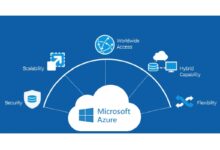
The Azure Portal is Microsoft’s web-based interface for managing cloud services and resources across the Azure ecosystem. It acts as a centralized dashboard where users can deploy, configure, monitor, and manage virtually every aspect of their cloud infrastructure. Think of it as the control center for your entire Azure environment.
A Central Hub for Cloud Management
From virtual machines to AI services, the Azure Portal brings together over 200 services into a single, intuitive interface. This unified access point simplifies how developers, IT professionals, and administrators interact with cloud resources. Instead of juggling multiple tools or command-line interfaces, users can perform most tasks directly from the portal.
- Access to compute, storage, networking, and security services
- Real-time monitoring and alerting capabilities
- Integration with third-party tools and APIs
Microsoft designed the Azure Portal to be both powerful and approachable. Its responsive design works seamlessly across devices, ensuring you can manage your cloud operations whether you’re at your desk or on the go.
How It Fits into the Microsoft Cloud Ecosystem
The Azure Portal doesn’t exist in isolation. It’s deeply integrated with other Microsoft services like Microsoft 365, Dynamics 365, and Power Platform. This interconnectedness allows organizations to build hybrid solutions that span on-premises and cloud environments.
For example, Azure Active Directory (Azure AD) integrates directly with the portal, enabling single sign-on (SSO), identity governance, and conditional access policies—all managed from one place. This level of integration enhances security and simplifies user management across platforms.
“The Azure Portal is the front door to your cloud journey—simple enough for beginners, robust enough for enterprises.” — Microsoft Azure Documentation
Navigating the Azure Portal Interface
Once you log in to the Azure Portal, you’re greeted with a customizable dashboard filled with widgets, shortcuts, and real-time data. Understanding this layout is crucial for efficient navigation and effective resource management.
Dashboard and Home Screen Overview
The default dashboard displays key metrics such as resource health, spending trends, and active alerts. Users can personalize this space by pinning frequently used services, creating custom tiles, or arranging widgets based on priority.
For instance, a DevOps engineer might pin their CI/CD pipelines and monitoring tools, while a finance manager could prioritize cost analysis and budget trackers. This flexibility makes the Azure Portal adaptable to various roles and workflows.
- Drag-and-drop widget customization
- Multiple dashboard support for different teams
- Quick access to recent resources and services
Microsoft also offers pre-built dashboard templates for common scenarios like application monitoring, network performance, and security compliance. These templates help users get started quickly without building dashboards from scratch.
Understanding the Navigation Menu (Hub)
On the left side of the screen lies the navigation menu, often referred to as the ‘Hub.’ This vertical pane provides access to all major services grouped into logical categories: Favorites, All Services, and Recent Resources.
Users can ‘pin’ services like Virtual Machines, Storage Accounts, or App Services to the Favorites section for faster access. The ‘All Services’ list is comprehensive, allowing filtering by category (e.g., Compute, Networking, AI + Machine Learning) or keyword search.
Additionally, the global search bar at the top enables instant lookup of any resource, service, or setting—making it easy to jump directly to a specific VM or database without navigating through menus.
Key Features of the Azure Portal
The Azure Portal stands out due to its rich feature set designed to simplify cloud operations. These features empower users to manage complex infrastructures with minimal effort while maintaining high visibility and control.
Resource Management and Deployment
One of the core functions of the Azure Portal is resource management. Users can create, modify, and delete resources using intuitive wizards or automated deployment templates. The portal supports Infrastructure as Code (IaC) through Azure Resource Manager (ARM) templates and Bicep files, enabling repeatable and consistent deployments.
For example, deploying a new web application involves selecting ‘App Services,’ configuring settings like region and pricing tier, and linking it to a database—all through guided steps. Alternatively, advanced users can upload an ARM template to deploy an entire environment in one click.
- One-click deployment from Azure Marketplace
- Template-based provisioning for consistency
- Role-based access control (RBAC) during setup
This blend of simplicity and automation makes the Azure Portal ideal for both ad-hoc tasks and large-scale enterprise rollouts.
Monitoring and Diagnostics Tools
Visibility into system performance is critical, and the Azure Portal delivers with built-in monitoring tools like Azure Monitor, Log Analytics, and Application Insights. These tools provide real-time telemetry data, logs, and metrics for all Azure resources.
Users can set up custom alerts based on CPU usage, memory consumption, or network latency. Dashboards visualize trends over time, helping identify bottlenecks or anomalies before they impact users.
For instance, if a virtual machine suddenly spikes in CPU usage, an alert can trigger an email or SMS notification, allowing immediate investigation. You can explore more about monitoring capabilities at Azure Monitor Documentation.
“Proactive monitoring reduces downtime by up to 70% in cloud environments.” — Microsoft Azure Case Studies
Security and Identity Management in Azure Portal
Security is not an afterthought in the Azure Portal—it’s embedded into every layer of the platform. From identity verification to threat detection, the portal provides robust tools to protect your cloud assets.
Azure Active Directory Integration
Azure Active Directory (Azure AD) is the backbone of identity management within the Azure Portal. It enables secure user authentication, multi-factor authentication (MFA), and conditional access policies.
Administrators can define rules such as ‘Require MFA when accessing from outside the corporate network’ or ‘Block sign-ins from high-risk countries.’ These policies are enforced across all Azure services and integrated applications.
Moreover, Azure AD supports hybrid identities, allowing organizations to sync on-premises Active Directory with the cloud. This ensures seamless user experiences without sacrificing security.
- User provisioning and lifecycle management
- Single sign-on (SSO) for SaaS apps
- Identity protection with risk-based policies
Learn more about securing identities at Azure AD Official Guide.
Role-Based Access Control (RBAC)
Risk mitigation starts with access control. The Azure Portal implements Role-Based Access Control (RBAC), allowing granular permission assignment at the subscription, resource group, or individual resource level.
Predefined roles like ‘Contributor,’ ‘Reader,’ and ‘Owner’ make it easy to assign appropriate access. For more specific needs, custom roles can be created to limit actions to only what’s necessary (principle of least privilege).
For example, a developer might have ‘Contributor’ access to a dev resource group but only ‘Reader’ access to production—preventing accidental changes to critical systems.
This fine-grained control enhances security while supporting collaborative workflows across teams.
Cost Management and Billing Insights
One of the biggest challenges in cloud computing is cost control. The Azure Portal addresses this with comprehensive cost management tools that provide transparency, forecasting, and optimization recommendations.
Understanding Azure Cost Analysis
The Cost Management + Billing section of the Azure Portal gives users detailed insights into their spending patterns. You can break down costs by service, region, department, or tag—enabling accurate chargebacks and budget tracking.
Interactive charts and reports show historical usage and project future expenses based on current trends. Budgets can be set with alerts triggered when thresholds are exceeded.
For example, a team lead can set a monthly budget for their development environment and receive email alerts when spending reaches 80% of the limit—helping avoid surprise bills.
- Detailed cost breakdown by resource type
- Forecasting tools for future spending
- Exportable reports for financial auditing
Explore cost analysis features at Azure Cost Management Docs.
Optimization Recommendations
Beyond tracking, the Azure Portal actively helps reduce costs. The ‘Advisor’ tool analyzes your usage and suggests optimizations such as resizing underutilized VMs, reserving instances for long-term savings, or deleting unused disks.
These recommendations are backed by data and often result in significant savings—sometimes up to 30–40% on monthly bills. Each suggestion includes estimated savings and a one-click implementation option.
For instance, if a VM runs at 15% CPU utilization for weeks, Advisor may recommend switching to a smaller, cheaper size. A simple click applies the change, reducing costs without manual intervention.
“Azure Advisor identified $18K in annual savings for our organization with zero downtime.” — Enterprise IT Manager, Financial Sector
Automation and DevOps with Azure Portal
The Azure Portal isn’t just for manual operations—it’s a launchpad for automation and DevOps practices. By integrating with Azure CLI, PowerShell, and DevOps pipelines, it bridges the gap between GUI and code-driven workflows.
Using Azure CLI and PowerShell from the Portal
The Azure Portal includes an embedded Cloud Shell—a browser-based command-line environment that runs Bash or PowerShell. This allows users to execute scripts, automate tasks, or run advanced queries without leaving the portal.
For example, you can open Cloud Shell and run a PowerShell command to list all VMs across subscriptions, filter by tags, and export the results to a file—all within minutes.
Cloud Shell is pre-authenticated, so there’s no need to log in again. It also supports persistent storage via an Azure file share, making it easy to save scripts and configurations.
- Pre-installed tools: Azure CLI, Terraform, kubectl
- Direct integration with Azure resources
- Script execution and automation in real time
Get started with Cloud Shell at Azure Cloud Shell Guide.
Integration with Azure DevOps and CI/CD Pipelines
The Azure Portal integrates tightly with Azure DevOps, enabling seamless deployment pipelines. Users can trigger builds, monitor releases, and view pipeline status directly from the portal interface.
For example, after deploying a web app, you can navigate to the ‘Deployment Center’ and connect your GitHub or Azure Repos repository. The portal will automatically configure CI/CD workflows, so every code commit triggers a new build and deployment.
This integration accelerates development cycles and ensures consistent, reliable deployments across environments—dev, test, staging, and production.
Customization and Personalization Options
The Azure Portal recognizes that no two users have the same needs. That’s why it offers extensive customization options to tailor the interface to individual preferences and organizational requirements.
Creating Custom Dashboards
Custom dashboards allow users to build personalized views of their most important data. You can add charts, logs, resource health indicators, and cost widgets to create a unified operational view.
For example, a site reliability engineer might create a dashboard showing uptime, error rates, and latency for all production services. A project manager could build a dashboard tracking deployment progress and team workload.
Dashboards can be shared with teams or kept private, and permissions can be controlled using RBAC—ensuring sensitive data is only visible to authorized personnel.
- Drag-and-drop widget placement
- Support for live data feeds and logs
- Export and import dashboard configurations
This level of personalization increases efficiency and reduces time spent navigating between services.
Using Tags and Resource Groups for Organization
As cloud environments grow, organization becomes critical. The Azure Portal supports tagging and resource grouping to help manage complexity.
Tags are key-value pairs (e.g., ‘Environment: Production’, ‘Department: Marketing’) that can be applied to any resource. These tags enable filtering, reporting, and automation. For instance, you can create a cost report for all resources tagged ‘Project: Phoenix’ or shut down all ‘Environment: Dev’ VMs on weekends to save money.
Resource groups act as logical containers for related resources. Instead of managing hundreds of individual items, you can manage them in groups—making deployment, deletion, and access control much simpler.
Together, tags and resource groups bring order to large-scale deployments and support governance at scale.
Best Practices for Using the Azure Portal
To get the most out of the Azure Portal, it’s important to follow proven best practices. These guidelines help improve security, reduce costs, and enhance operational efficiency.
Securing Access with Multi-Factor Authentication
Always enable Multi-Factor Authentication (MFA) for all users, especially administrators. MFA adds an extra layer of protection by requiring a second form of verification—like a phone call, text, or authenticator app—during login.
This simple step dramatically reduces the risk of account compromise, even if passwords are leaked. In the Azure Portal, MFA can be enforced through Azure AD Conditional Access policies.
- Enforce MFA for all privileged accounts
- Use Conditional Access for location-based rules
- Monitor sign-in risks with Identity Protection
Security starts at the login screen—don’t skip this critical step.
Regularly Reviewing Access and Permissions
Over time, users accumulate permissions they no longer need. Regular access reviews help clean up outdated roles and prevent privilege creep.
The Azure Portal includes Access Reviews under Azure AD, allowing administrators to periodically confirm who should retain access to specific resources or groups. Automated reviews can be scheduled monthly or quarterly.
This practice supports compliance with standards like ISO 27001, HIPAA, and GDPR, and reduces the attack surface of your environment.
“Organizations that conduct quarterly access reviews reduce insider threat incidents by 60%.” — Microsoft Security Benchmark Report
What is the Azure Portal used for?
The Azure Portal is used to manage cloud resources on Microsoft Azure. It allows users to deploy virtual machines, configure networks, monitor performance, manage identities, control costs, and automate workflows—all through a web-based interface.
Is the Azure Portal free to use?
Yes, access to the Azure Portal itself is free. However, the cloud resources you create and manage through it (like VMs, storage, and databases) incur charges based on usage. You can use the portal’s cost management tools to monitor and control spending.
How do I secure my Azure Portal account?
Secure your Azure Portal account by enabling Multi-Factor Authentication (MFA), using strong passwords, assigning least-privilege roles via RBAC, and conducting regular access reviews. Also, monitor sign-in activity through Azure AD Identity Protection.
Can I automate tasks in the Azure Portal?
Yes, you can automate tasks using Azure CLI, PowerShell, ARM templates, or Azure Automation. The portal’s Cloud Shell allows you to run scripts directly, and integration with Azure DevOps enables CI/CD pipelines for application deployment.
What are Azure Advisor recommendations?
Azure Advisor provides personalized recommendations to improve cost efficiency, performance, security, and reliability of your Azure resources. These include resizing VMs, enabling backup, or applying security baselines—all with estimated savings and one-click fixes.
The Azure Portal is far more than just a management console—it’s a powerful, secure, and intelligent gateway to the Microsoft Cloud. By mastering its features, from navigation and security to cost control and automation, you can unlock unprecedented efficiency and control over your cloud environment. Whether you’re managing a single app or an enterprise-wide infrastructure, the Azure Portal provides the tools you need to succeed. Start exploring its capabilities today and take your cloud operations to the next level.
Further Reading: